Here is some content
How to use the Blocks Content Page
If you click the plus button in the wagtail admin, you can create a new block. Think of blocks like lego blocks you need to build a page. Right here is a text block where you can add content.
If you highlight the text, you will get a purple bar pop-up. From there you can make the text bold, italic, or even different sizes. Tip: If you highlight the text, the purple bar will pop up, on the right hand side there is a pin option. This then keeps it at the top of the block for easy editing.
Here is H2 example (Heading 2)
Here is H3 example (Heading 3)
Here is H4 example (Heading 4)
All of these can be added by highlighting the text and clicking H2/H3/H4 in the bar at the top.
- You can also have bullet points
or even add a seperator line:
^^ just simply click the line at the top bar.
You can also add hyperlinks or even images in a rich text block:

Below is a example of a video embed, simply click the plus button and select the video block. You then need to add in the URL and it will show the video like below!
Here is a Concertina
A concertina / FAQ is really useful to be able to add information in a neat and easy to read way. You can add a concertina by clicking the plus button and selecting the Concertina / FAQ Block.
You then click the smaller plus button under summary to add an FAQ.
Here is the first FAQ in the list
And here is the detail if you expand the FAQ list
Here is the second FAQ in the list
And again, here it is hidden underneath.
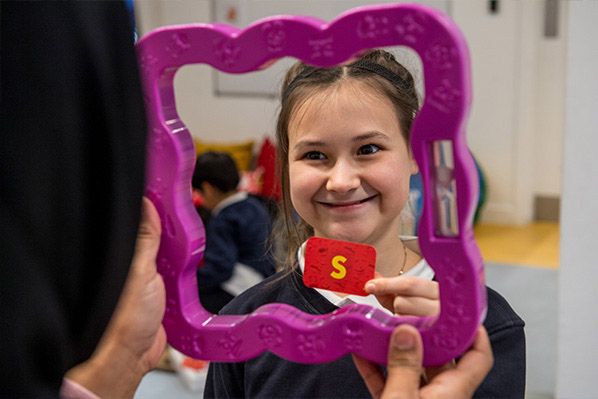
Here is a call to Action Block
You can add a call to action block by clicking the plus button and adding "Call to Action". At the top, add a image size and what direction you would like the image to be. You can then add content which this section is.
Below the content is the button details. You can choose where you'd like the button to link to, and if when clicked, you'd like it to open in a new window.
The button, you can then change what colour you would like it to be, such as pink, green or yellow. You can then change the button style of either solid or outlined. Below is primary & Solid.
Below is the automatic top three.
Here you can get the system to automatically show pages under a parent page (like news). You need to choose the Parent page, then what ordering you'd like to show. If the pages do not have a Meta Image, the Cardinal Humes logo will be shown instead like below.
You can then add a title for the Automatic Top Three Content
-
Donate Marianne test
-
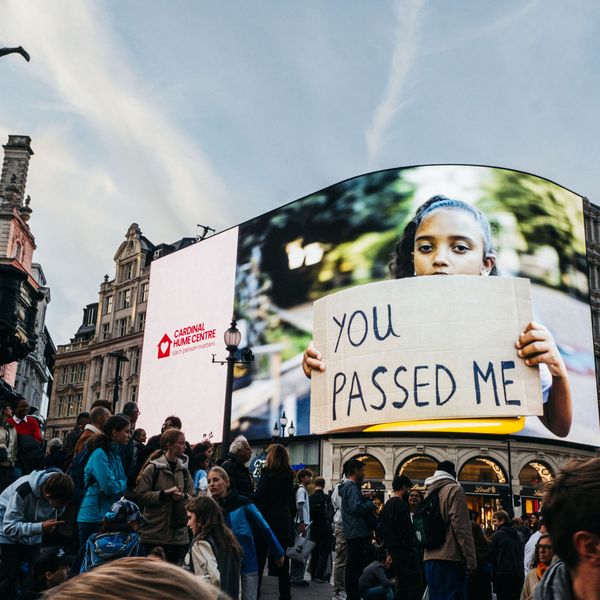
You passed me campaign launches across London
In October 2026 we put our 'You passed me' campaign highlighting hidden homelessness where everyone could see it...
-
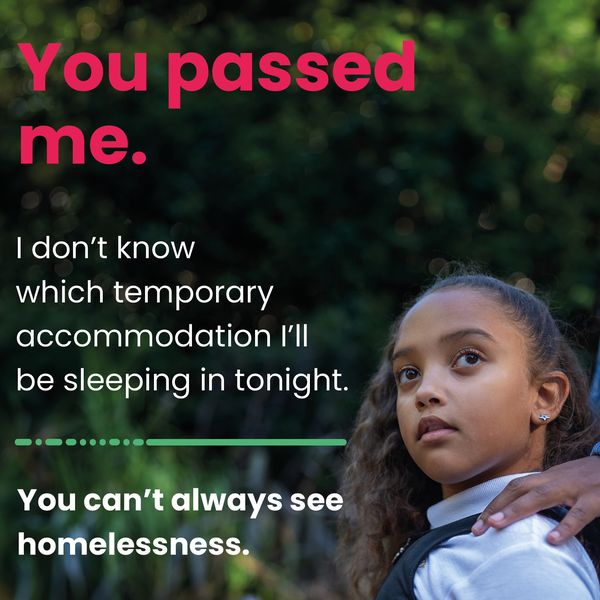
You passed me
You passed me. There are 4000 children living in temporary accommodation in Westminster. You can't always see homelessness.
Below is the tile block.
Here you can manually link to other pages, and choose the size of the grid too. This example is a Three Grid Size. You can add a new tile by clicking the small plus button underneath tiles. You can then choose a page to link to.
You can also change the colours of each indvidual tile
Here our the tile block
Here is a description field
Below is the image Grid.
Here you can add multiple photos, which will automatically change how it looks depending on how many photos you have. Simply click image grid and add a image under each one. Don't forget the Alt Text too!
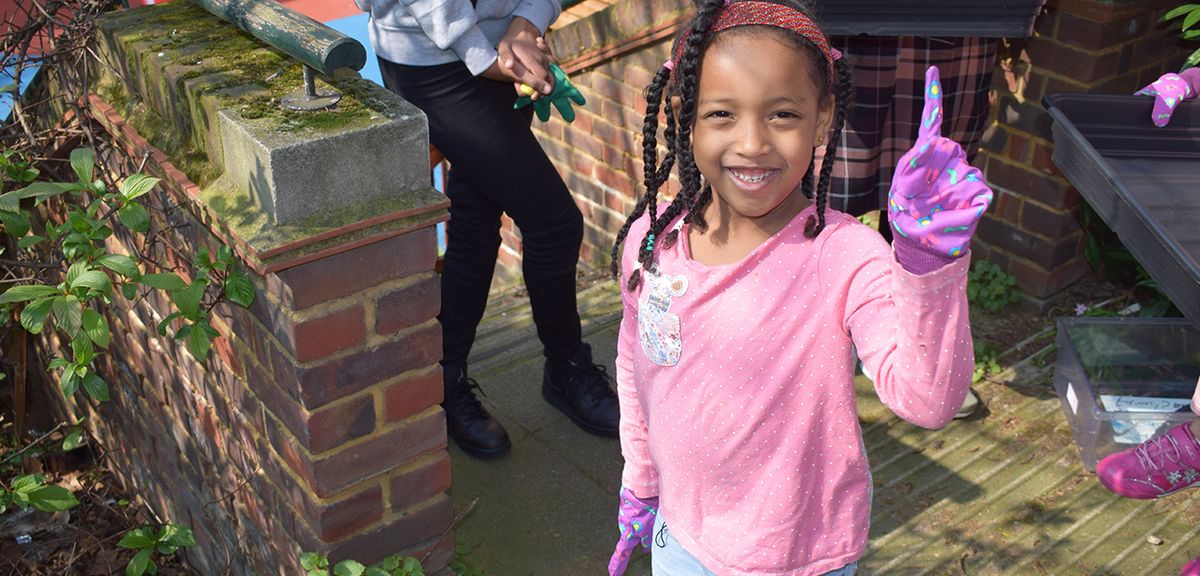


Here is a quote block. This is easily added by clicking quote. This is the area which you can add the quote detail. Always remember you want to keep a quote short! You can change the colours too.
Here is who said the quote. You can add a image too!
You can also add columns to the site where you can add content next to each other. this is a Two Column block. Here you can choose the ratio of the colums.
You can add Text Block, Images, tiles, videos, buttons, call to actions, automatic top threes and custom code in a column.
A quote list is the same as a normal quote, but you can add more quotes
Quote One
Quote two
Below is a table!
| One | Two | Three |
|---|---|---|
| A | ||
| B |
You can also embed a form within a page!
To do this, you need to create a new page type called "form", and fill in the questions & thank you. Then you can select a block named Form, and it adds it like below.
Here is the title
* requiredBelow is an Automatic Content List.
This is to show specific content from other pages.